
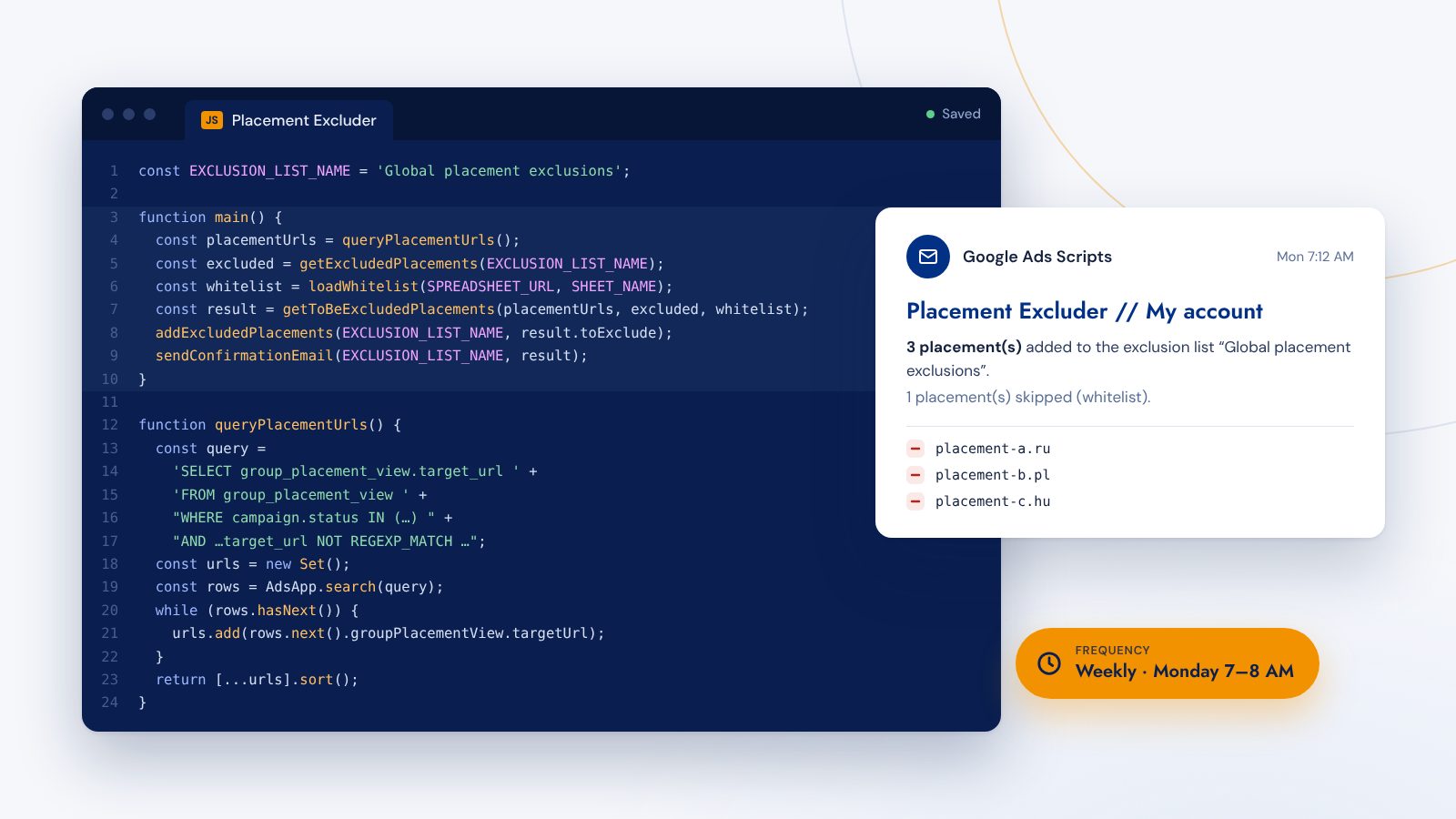
Filters, automated rules and bulk uploads already take you a long way in Google Ads. Sooner or later, though, you run into a task you repeat every week and that no built-in feature covers. That's what Google Ads scripts are for. In this article we build a complete script together: from the idea and the research to an automatic schedule. Basic JavaScript knowledge helps, but it isn't a requirement.
Google Ads scripts in a nutshell
Google Ads scripts are small JavaScript programs that run directly inside your Google Ads account. They read data, change campaigns, write to Google Sheets or send emails, hourly, daily or weekly if you like.
The Google Ads Scripts developer site has an introduction (Guides), the full reference (Reference), plenty of code examples (Examples) and a few ready-made solutions (Solutions). Most of the ready-made solutions can be adapted to your account with a few settings.
Often, though, the templates are too far from what you actually need. That's when it pays to write your own script from scratch.
The problem: Display ads on unsuitable websites
Google interprets language and location targeting fairly broadly. Whether someone speaks a language is inferred from signals such as browser settings, location and YouTube language settings.
The result: even with tight regional targeting, Display ads end up on foreign-language websites with foreign domain endings. In our case, as expected, these placements performed poorly.
The idea: straight from day-to-day account management
The push for an automation almost always comes from day-to-day operations. Robert, account manager at adtraffic, explains in this interview how his specific problem turned into the script in this article.
Richard: Robert, how did the idea of excluding placements automatically come about?
Robert: From everyday work. While reporting on new Display campaigns, I noticed a striking number of unsuitable placements in the "Where ads showed" report. Even the first page was full of domains ending in .ru, .pl or .hu, which largely miss the actual target audience.
Richard: Apart from the domain endings, were there other signs that these placements didn't fit?
Robert: Yes, the metrics. One placement kept showing up in several Display campaigns, each time with similarly suspicious numbers. A CTR of over 50% in the Display Network sets off alarm bells immediately. That placement had to go.
Richard: What happened next?
Robert: With that many potentially unsuitable placements, the question quickly came up whether this could be automated. Entering and confirming every placement one by one was a lot of work. Naively, I thought it couldn't be that hard to tell Google: only placements ending in .de, .org or .com, please. Unfortunately, Google's built-in tools don't let you exclude unwanted domain endings across the board.
Richard: And then it was time to research and script together?
Robert: Exactly. The idea was there quickly and "only" had to be turned into a script. Knowing that the finished script could also be used in other client accounts was a nice extra motivation.
Richard: How happy are you with the result?
Robert: Very happy. Especially because the first version was quickly followed by a second one: after about a week in use, it turned out there are also wanted placements that don't end in the familiar domain endings. A good example is "bedienungsanleitu.ng", a German site for user manuals. So we needed a whitelist to permanently exempt placements like that from automatic exclusion.
Richard: Your three key learnings?
Robert: First: Google Ads scripts are an interesting mix of common sense and pure logic. Second: JavaScript skills make it easier, but thanks to Google's detailed documentation you're not lost without them. Third: scripts want to evolve on their own, you just have to help them a little.
From manual process to plan
Before: Unwanted placements were selected with a filter in the "Where ads showed" view and added as exclusions to each campaign. You can't add them to a shared exclusion list directly from that view; they would have to be copied or typed in by hand.
Goal: Because these off-market placements make sense as exclusions for several or even all campaigns, they should automatically land in a shared placement exclusion list that applies to all relevant campaigns.
Preparation: We create the exclusion list once by hand and apply it to the campaigns. This could be automated too, but for a one-time task it isn't worth it.
The script itself then handles three steps:
- Detect unwanted placements: build a list of all placements that are candidates for exclusion.
- Add them to the exclusion list: add every placement that isn't excluded yet and isn't on the whitelist.
- Send a confirmation email: let the responsible account manager know which placements were added.
Research: what the documentation offers
Each step needs a suitable function or query. So we check the documentation first instead of writing code right away.
- Detect placements: [
AdsApp.search()](https://developers.google.com/google-ads/scripts/docs/reference/adsapp/adsapp) lets you query data in the Google Ads Query Language (GAQL). The Query Builder helps you put queries together. Three resources are candidates for our task:detail_placement_view,group_placement_viewandmanaged_placement_view. We usegroup_placement_viewbecause it returns websites as a whole. - Add to the exclusion list: The [
ExcludedPlacementList](https://developers.google.com/google-ads/scripts/docs/reference/adsapp/adsapp_excludedplacementlist) object provides the methodsaddExcludedPlacement()andaddExcludedPlacements()to add one or several placements at once. - Send a confirmation: Among the code examples, the Utilities section has a "Send a simple email" snippet using
MailApp.sendEmail().
Creating the script
In Google Ads, you'll find scripts under Tools › Bulk actions › Scripts. Use the blue plus button to create a new script.
The first time, the script asks for authorization so it can later make changes on behalf of your user. Click "Authorize", choose your Google account and allow the requested access. Give the script a meaningful name right away, for example "Placement Excluder".
The script step by step
We build the script from several small functions. Each one does exactly one job, and the main function main() calls them in order. That keeps the code readable and lets you reuse parts later.
Settings at the top
Everything you need to adjust per account sits at the very top, so you don't have to hunt through the code later.
const SPREADSHEET_URL = 'https://docs.google.com/spreadsheets/d/YOUR-SHEET-ID/edit';
const SHEET_NAME = 'placements';
const EXCLUSION_LIST_NAME = 'Global placement exclusions';
const EMAIL_RECIPIENTS = 'name@example.com';
Querying unwanted placements
The first function returns a sorted list of all placements that are candidates for exclusion. The query searches all enabled and paused Display campaigns whose name starts with "GDN_" and fetches all website placements that do not end in one of the allowed domain endings.
function queryPlacementUrls() {
  const query =
    'SELECT group_placement_view.target_url ' +
    'FROM group_placement_view ' +
    "WHERE campaign.status IN ('ENABLED', 'PAUSED') " +
    "AND campaign.advertising_channel_type = 'DISPLAY' " +
    "AND group_placement_view.placement_type = 'WEBSITE' " +
    "AND group_placement_view.target_url NOT REGEXP_MATCH '.*[.](de|at|ch|com|net|org|info)' " +
    "AND campaign.name REGEXP_MATCH 'GDN_.*'";

  const urls = new Set();
  const rows = AdsApp.search(query);
  while (rows.hasNext()) {
    urls.add(rows.next().groupPlacementView.targetUrl);
  }
  return [...urls].sort();
}
A few details:
- Adjust the allowed domain endings and the campaign name pattern directly in the query.
- In the regular expression,
[.]stands for a literal dot. A plain\.would be swallowed by JavaScript inside the string, and the dot would then match any character. - The
Setmakes sure each placement appears only once, even if it shows up in several ad groups.
Finding the exclusion list
This small helper looks up the exclusion list by name. We need it twice: for reading and for adding. If the list doesn't exist, the script stops with a clear message.
function getExcludedPlacementList(listName) {
  const lists = AdsApp.excludedPlacementLists().get();
  while (lists.hasNext()) {
    const list = lists.next();
    if (list.getName() === listName) {
      return list;
    }
  }
  throw new Error('Exclusion list "' + listName + '" not found.');
}
Loading placements that are already excluded
Before adding anything, we fetch all placements already on the list, so nothing gets added twice.
function getExcludedPlacements(listName) {
  const excluded = [];
  const placements = getExcludedPlacementList(listName).excludedPlacements().get();
  while (placements.hasNext()) {
    excluded.push(placements.next().getUrl());
  }
  return excluded.sort();
}
Loading the whitelist from Google Sheets
For wanted placements with unusual endings, we set up a Google Sheet: a tab named "placements" with one domain per row in column A. The function reads the column and ignores empty rows.
function loadWhitelist(spreadsheetUrl, sheetName) {
  const sheet = SpreadsheetApp.openByUrl(spreadsheetUrl).getSheetByName(sheetName);
  const lastRow = sheet.getLastRow();
  if (lastRow === 0) {
    return [];
  }
  return sheet.getRange(1, 1, lastRow, 1).getValues()
    .map(row => String(row[0]).trim().toLowerCase())
    .filter(url => url !== '');
}
Determining new exclusions
Now we bring the three lists together:
placementUrls: all presumably unwanted placementsexcludedPlacements: all placements that are already excludedwhitelist: all explicitly wanted placements
Each placement is checked against the whitelist first. If it's there, it's skipped and counted for the confirmation email. If it isn't excluded yet, it goes on the list of new exclusions.
function getToBeExcludedPlacements(placementUrls, excludedPlacements, whitelist) {
  const toExclude = [];
  let numWhitelisted = 0;
  for (const url of placementUrls) {
    if (whitelist.includes(url)) {
      numWhitelisted++;
    } else if (!excludedPlacements.includes(url)) {
      toExclude.push(url);
    }
  }
  return { toExclude: toExclude, numWhitelisted: numWhitelisted };
}
Adding the exclusions
We append the new placements to the exclusion list in one go. If there's nothing new, the function simply does nothing.
function addExcludedPlacements(listName, urls) {
  if (urls.length === 0) {
    return;
  }
  getExcludedPlacementList(listName).addExcludedPlacements(urls);
}
Confirmation email
So you know what happened, the script sends a short email listing all newly excluded placements. The account name in the subject helps when the script runs in several accounts.
function sendConfirmationEmail(listName, result) {
  const subject = 'Placement Excluder // ' + AdsApp.currentAccount().getName();
  const body =
    result.toExclude.length + ' placement(s) added to the exclusion list "' + listName + '".\n' +
    result.numWhitelisted + ' placement(s) skipped (whitelist).\n\n' +
    result.toExclude.join('\n');
  console.log(body);
  MailApp.sendEmail(EMAIL_RECIPIENTS, subject, body);
}
The main function
main() is the entry point Google Ads calls on every run. It connects all the steps:
function main() {
  const placementUrls = queryPlacementUrls();
  const excludedPlacements = getExcludedPlacements(EXCLUSION_LIST_NAME);
  const whitelist = loadWhitelist(SPREADSHEET_URL, SHEET_NAME);
  const result = getToBeExcludedPlacements(placementUrls, excludedPlacements, whitelist);
  addExcludedPlacements(EXCLUSION_LIST_NAME, result.toExclude);
  sendConfirmationEmail(EXCLUSION_LIST_NAME, result);
}
You can download the complete script in one piece here: placement-excluder-en.js. Enter your own values at the top and paste the content into the script editor.
Permissions, preview and schedule
To access the Google Sheet and send emails, the script needs additional permissions. Google Ads asks for them on the first run at the latest; the notice appears at the bottom of the editor. Confirm with "Authorize".
Before the script makes real changes, run it once using Preview. The full code runs, but changes to the exclusion list are only simulated. The log shows which placements would be excluded. Once everything looks right, set the schedule in the "Frequency" column on the overview page. In our example, the script runs every Monday between 7 and 8 a.m.
What about AI?
You may be wondering: can't I just have an AI assistant write this for me? Partly, yes. Current models produce far more usable code for Google Ads scripts than they did a few years ago, and they're a good help for understanding and extending a script.
Still, they regularly fall back on outdated syntax or invent methods that don't exist. If you know the documentation and the basic structure of your script yourself, you'll spot these mistakes right away. Our tip: build your first script yourself, then bring in AI as a sparring partner.
Summary
Many recurring tasks in Google Ads hide potential for automation. The path is always similar: describe the problem, break it into steps, find suitable functions in the documentation, build small functions, test in preview and let it run on a schedule. Maybe you already have an idea for your own script. Have fun experimenting, and good luck with your first Google Ads script!
This article was first published in German by adtraffic in 2023 and has been revised for rsc24. The code was updated for the current scripts environment.
First published at www.adtraffic.de